Taskr · Open for testing
Chores, split by the minutes each of you actually has.
Write down what needs doing and how long it takes, say how many minutes each person has this week, and Taskr deals the work out in proportion. When the split cannot be made fair, it says so instead of pretending. It runs in a phone's browser, and it is free to try.
How to start
Three steps, and the first two happen once. Everything in bold is the name of a control as the app shows it.
- Make your own account. Open Taskr and, under the sign-in form, tap Start a household. Type Your email and Your password and tap Create account. An email called Confirm your email address arrives; tap Confirm email address in it, and you land back in Taskr, signed in.
- Name the household. Under Start a household, type a Household name and Your name, and tap Create household. You are its organizer: the one person who adds everyone else.
- Add the people and the chores. On the Who tab, under Add someone, give each person a Name, their Available minutes per week and an Email address, and tap Add to household; they get an email and choose their own password. On the Chores tab, under What needs doing, give each job a name, its Expected minutes and when it is Due, and tap Add chore. Or type a sentence about the week and tap Work out the chores. The Split tab shows how it falls.
Taskr can send at most two emails an hour, so adding a household of four takes two sittings. An invitation that has not arrived is waiting on that, not lost.
What it looks like
A demo household of three, on a phone.
-
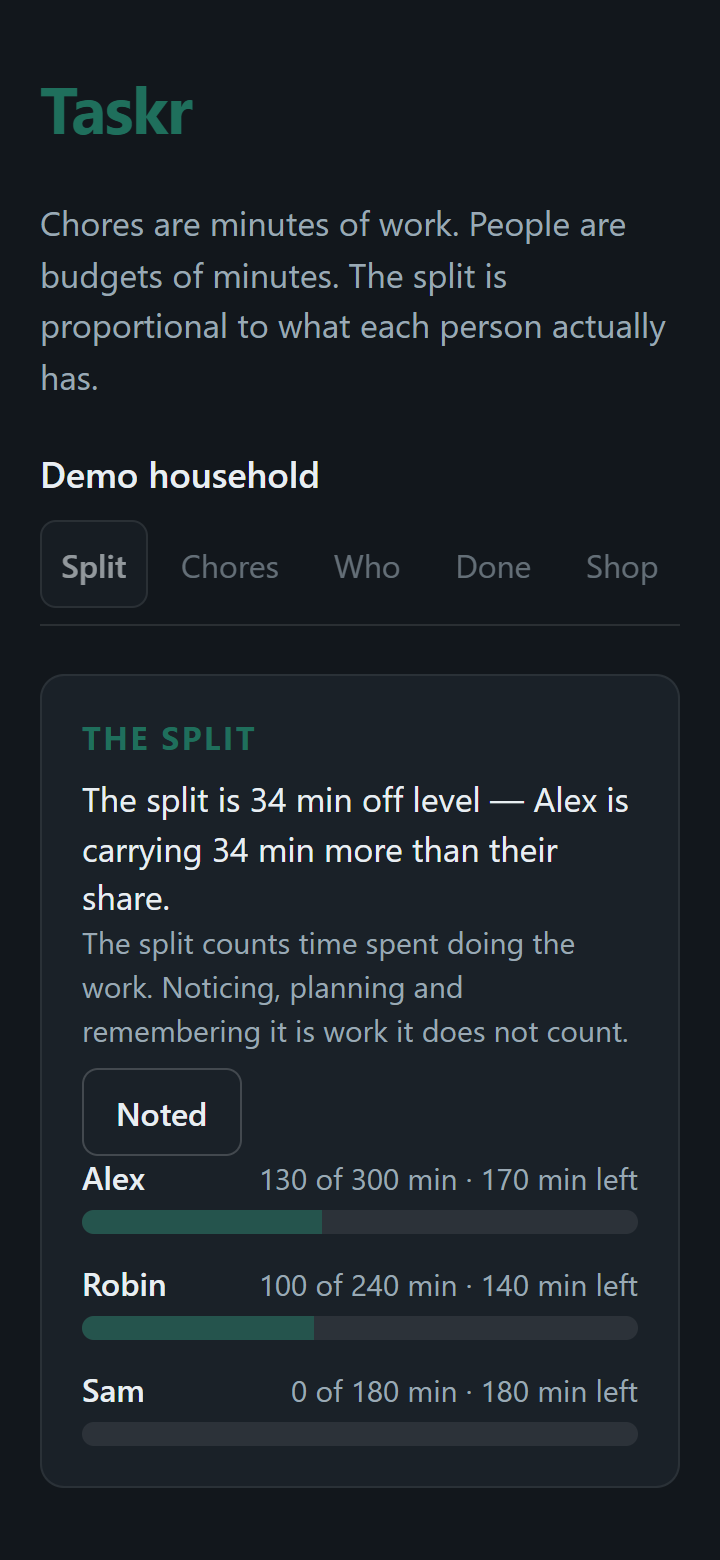 Split
Split
-
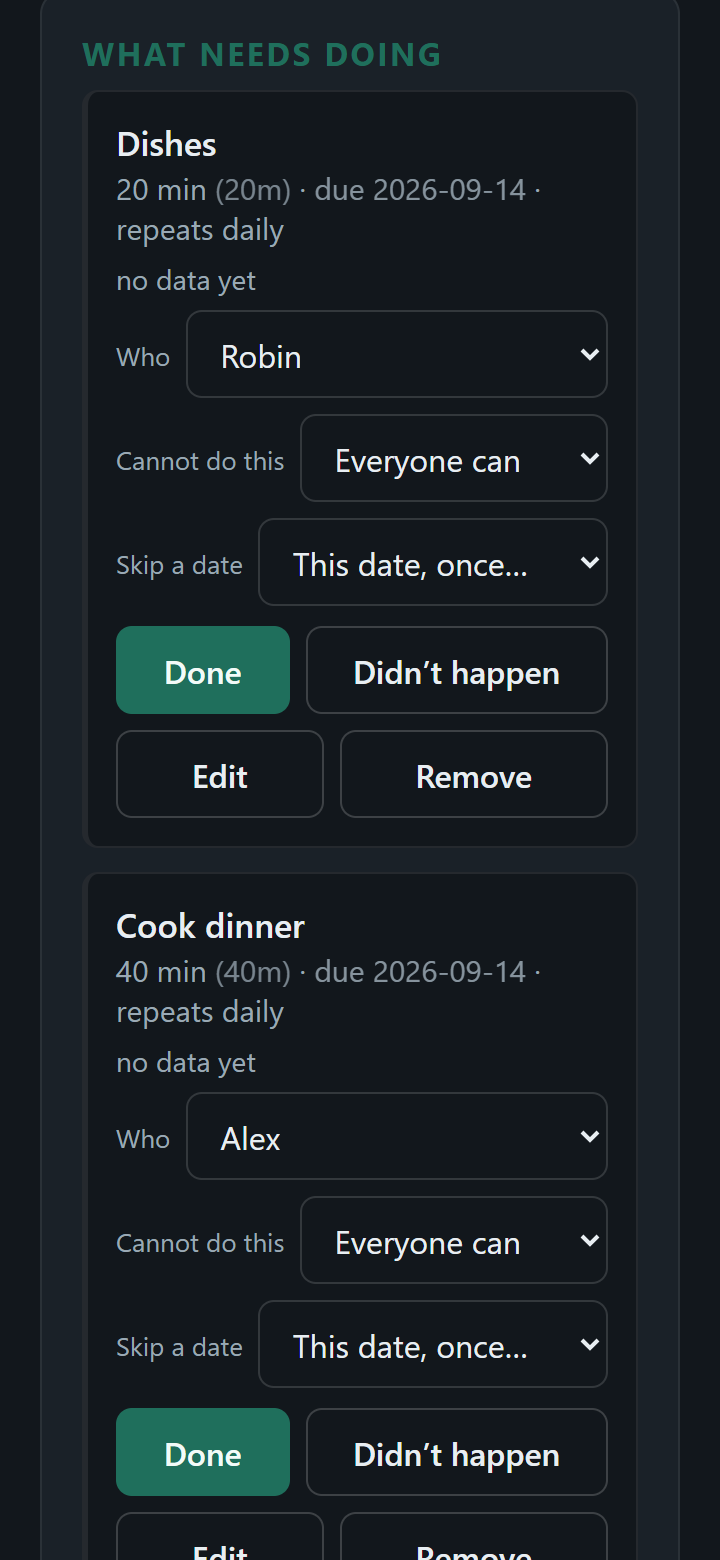 Chores
-
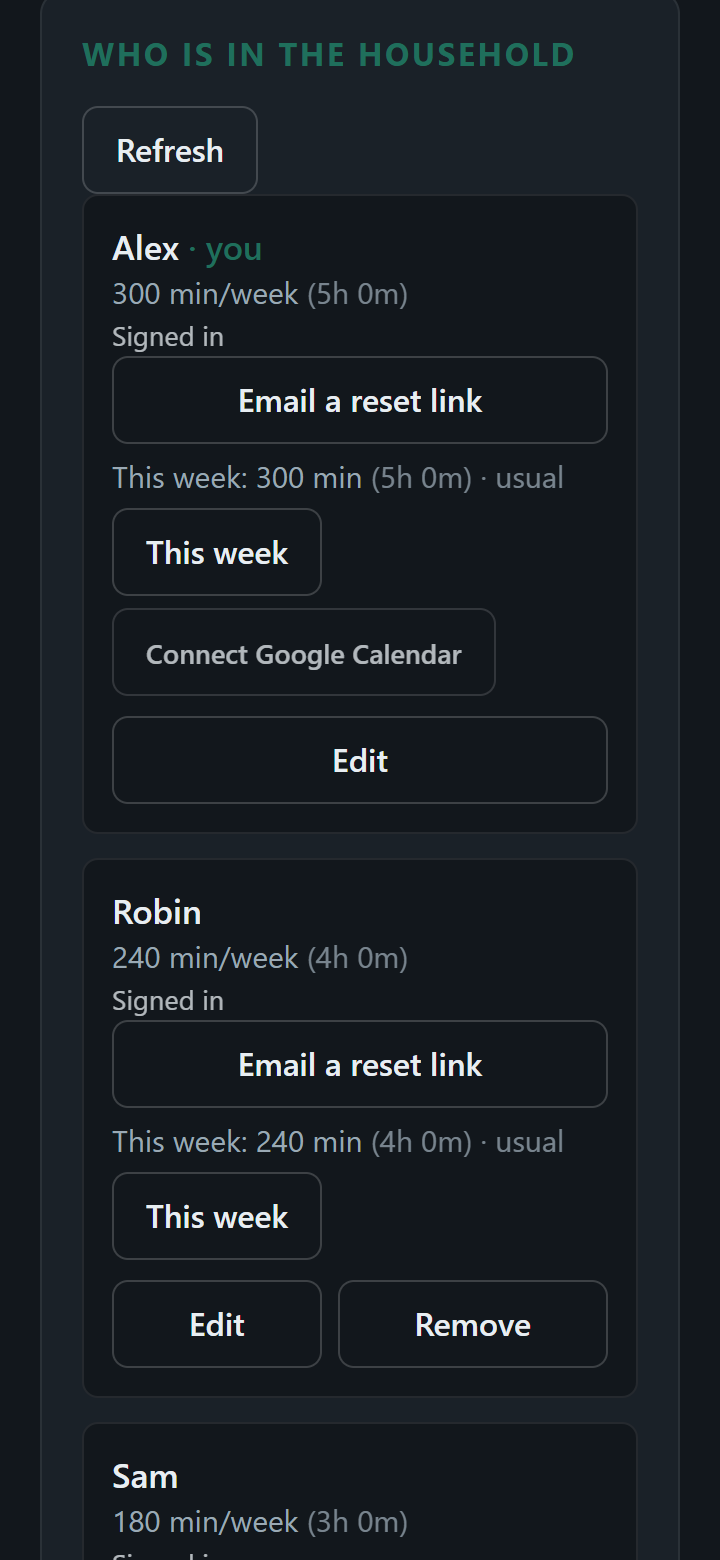 Who
Who
Testing
What "open for testing" means
Taskr changes often. A finished change goes live the same day, and an open app picks it up on its own, so a screen you saw last week may have moved. What you enter lives on the server, not in the app, so an update does not lose it.
Some things are known to be wrong with it and are listed on the support page so you do not have to find them yourself. The one to know before you start: Continue with Google is shown on the sign-in screen but does not work yet, so use your email and password.
What it keeps
The names you type, the minutes, the chores, and each person's email address, on a server, so every phone in the household sees the same split. Everyone in the household can see everyone else's email address. There is no advertising and no analytics. A member can leave, and the organizer can delete the household, from inside the app. The privacy page lists every item, who can read it, and which companies handle it.
How to report a problem
Every screen has a Report a problem link in its footer. It opens your email app with the build number and the screen already filled in; add what happened and send it. Or write to [email protected]. The support page says how long a reply takes.